
Split · Sign-in theme
Split
A brand panel in your color with your own headline next to the sign-in form. It sets the side panel HTML, which organization admins can install on Casdoor 4.20.0 and later; before that only a global admin can.
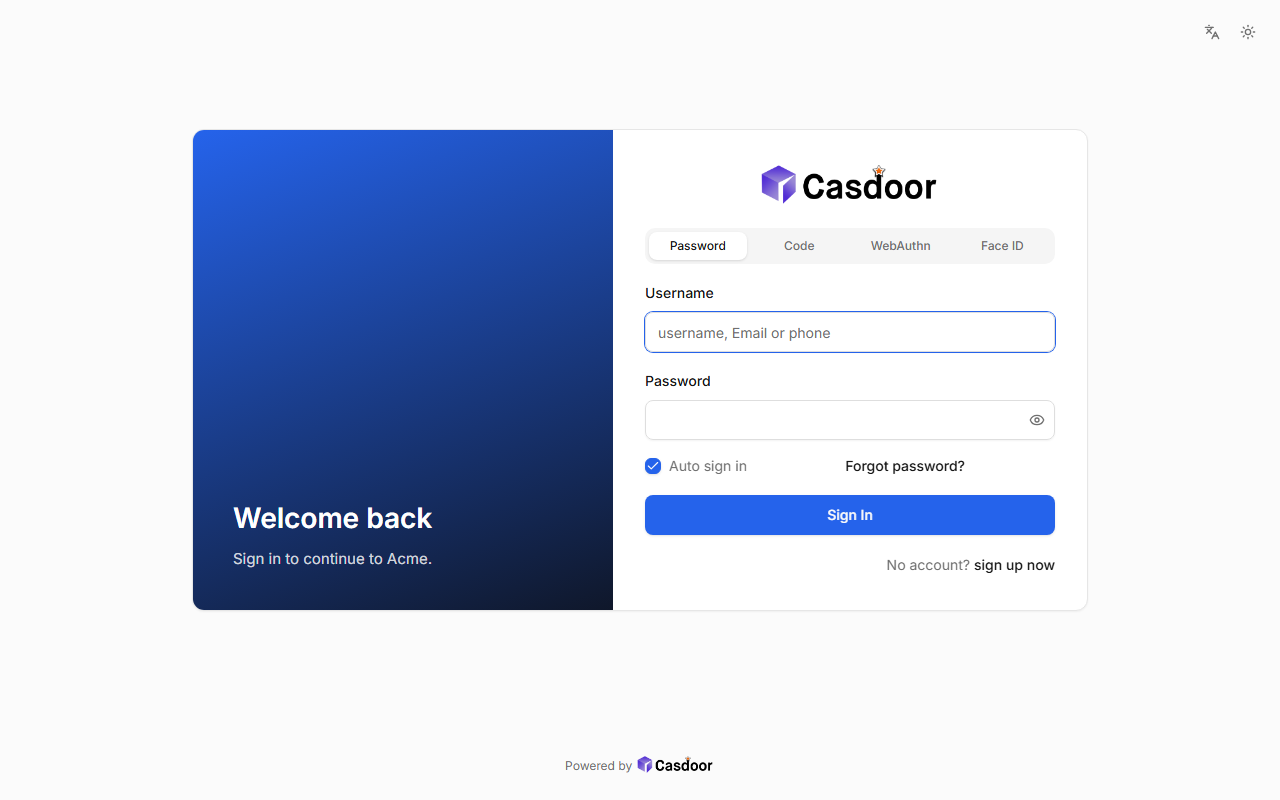
This theme sets custom HTML. On Casdoor 4.20.0 and later an organization admin can apply it; before that only a global admin (an admin of the built-in organization) can, and when anyone else saves it, Casdoor keeps the application's old HTML.
What it sets
| Theme | default |
|---|---|
| Border radius | 10px |
| Form position | Center, with the side panel |
| Custom CSS | No |
| Custom CSS Mobile | No |
| Side panel HTML | Yes |
Everything is on the application's UI Customization tab in Casdoor, so you can keep adjusting it after applying the theme.
Apply it to an application
- Enter the application below, adjust the theme's settings, and copy the JSON.
- In the Casdoor console, open Applications, edit that application, click Import JSON at the top, paste the JSON and click OK.
- Click Save. The sign-in page uses the theme from the next visit.
{
  "name": "<application name>",
  "organization": "<organization>",
  "themeData": {
    "themeType": "default",
    "colorPrimary": "#2563eb",
    "borderRadius": 10,
    "isCompact": false,
    "isEnabled": true
  },
  "formOffset": 4,
  "formSideHtml": "<div style=\"box-sizing: border-box; height: 100%; min-height: 480px; display: flex; flex-direction: column; justify-content: flex-end; padding: 40px; color: #ffffff; background: linear-gradient(160deg, #2563eb 0%, #0f172a 100%);\"><p style=\"margin: 0; font-size: 28px; line-height: 1.25; font-weight: 600;\">Welcome back</p><p style=\"margin: 12px 0 0; font-size: 15px; line-height: 1.5; opacity: 0.8;\">Sign in to continue to Acme.</p></div>"
}More sign-in themes
View all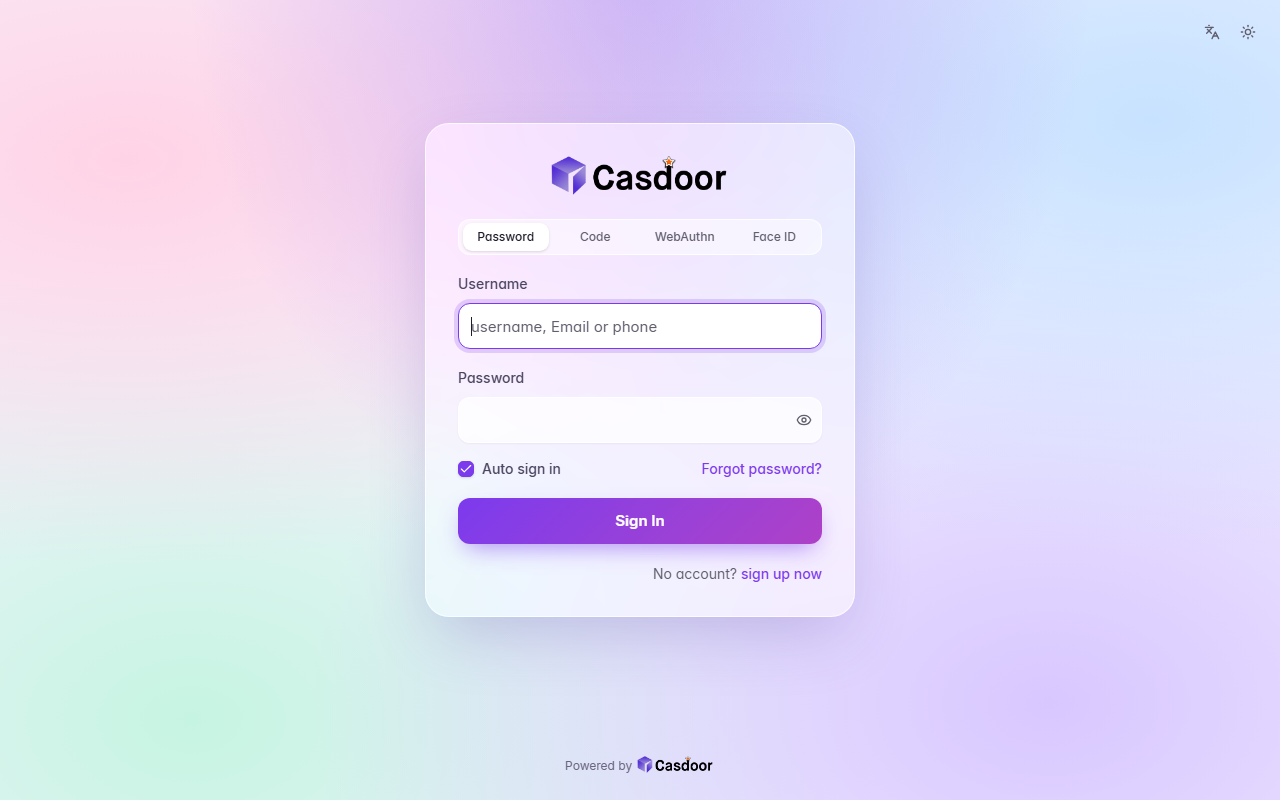
Aurora
Sign-in themeA pastel mesh of color tinted by your accent behind a frosted glass card, with soft rounded fields and a gradient button. CSS only, so organization admins can install it.
Backdrop
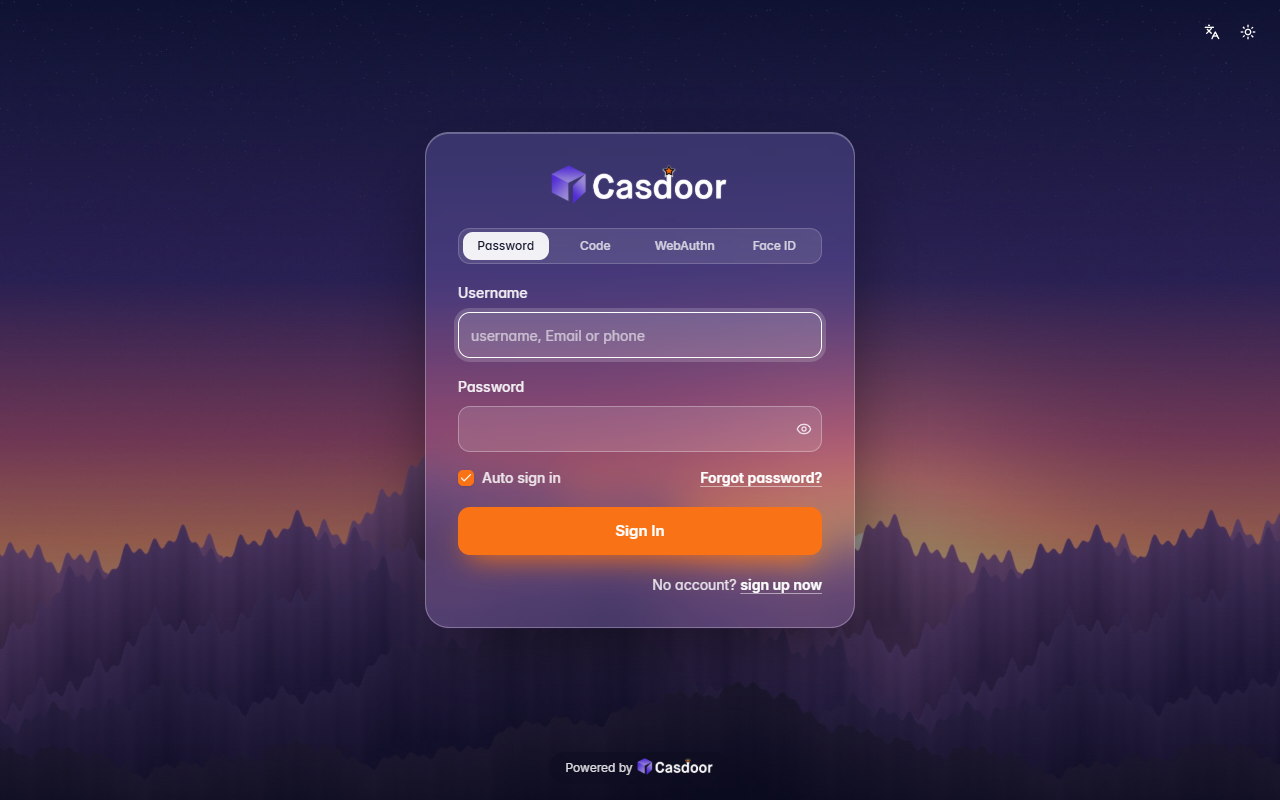
Sign-in themeYour own picture behind the whole page, dimmed a little, with a frosted glass card on top. It comes with a dusk mountain scene; give it any image address to use yours. Organization admins can install it.
Bare
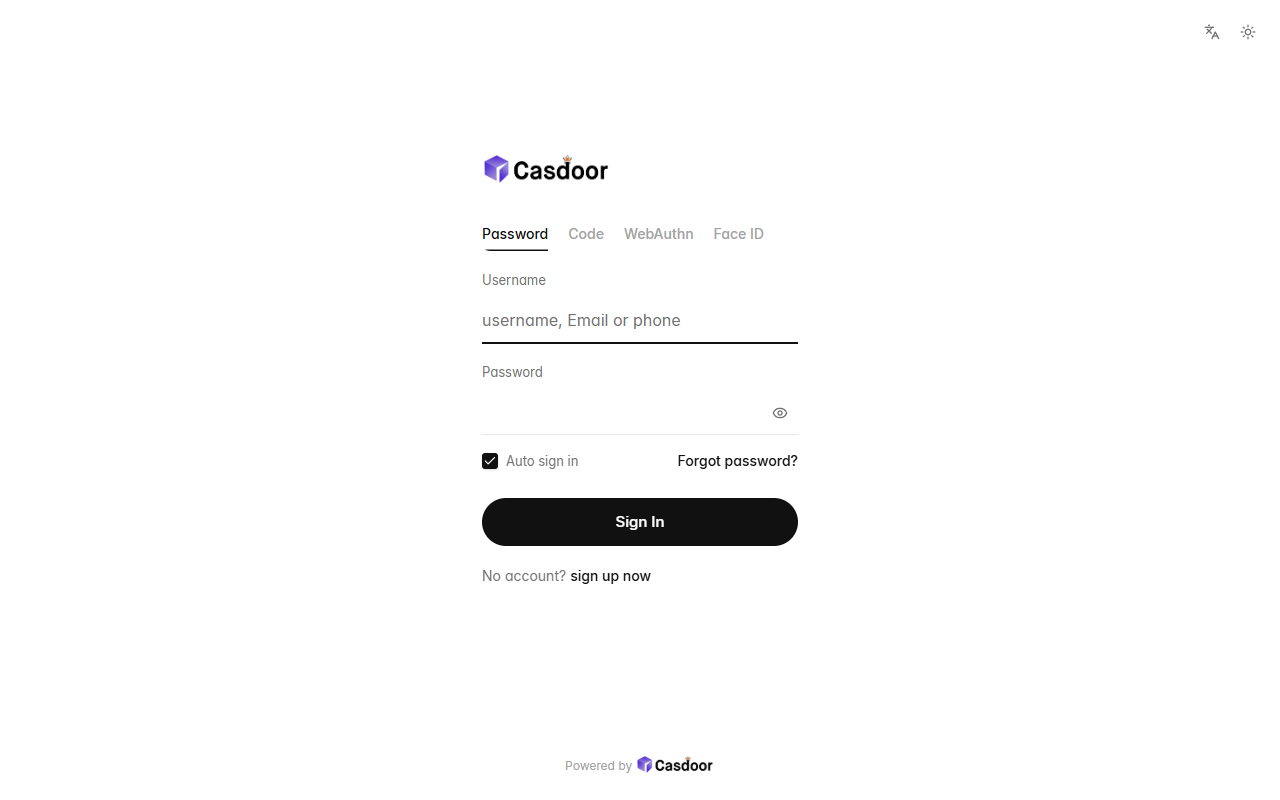
Sign-in themeNothing but the form: no card, no background, a small left-aligned logo, quiet text tabs, hairline fields and a round button, with plenty of white space. CSS only, so organization admins can install it.